Creating new items
Creating folders
Section titled “Creating folders”Choosing New Folder creates it within the current folder, gives it a default name and selects it so that you can immediately rename it as you choose.
Creating crosswords
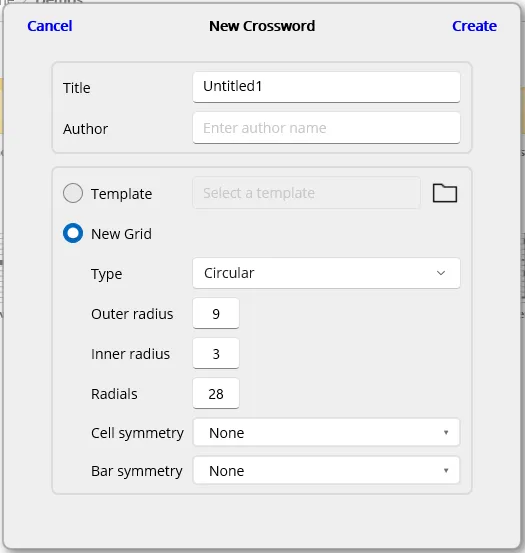
Section titled “Creating crosswords”Clicking New Crossword opens a dialogue. From here you can specify the name and author of the puzzle, and choose how its grid should be initialised.
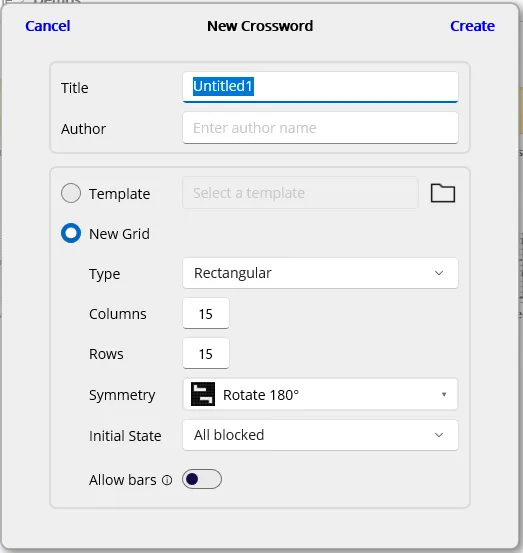
Create from template
Section titled “Create from template”By selecting the Template option or clicking the folder icon, you can select a template to use to use as the basis of your crossword:
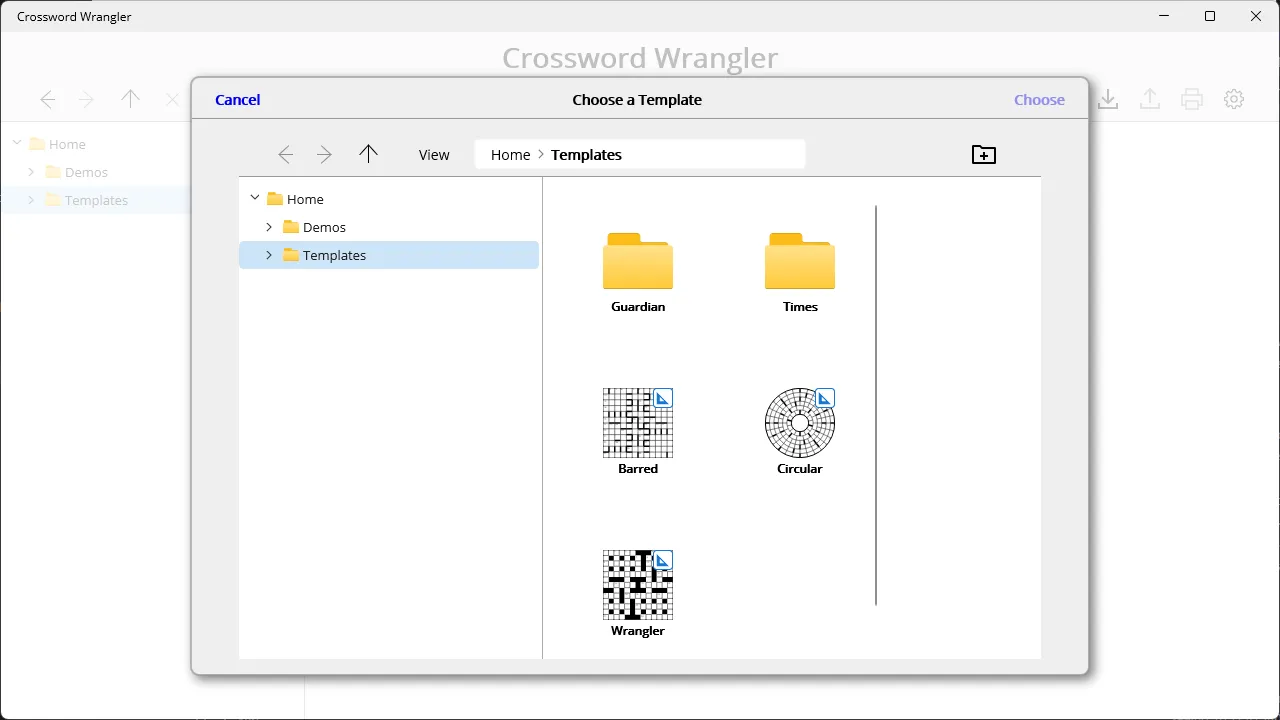
Choosing a template returns you to the New Crossword dialogue; clicking Create takes you to the edit page with your grid initialised as in the selected template.
New grid
Section titled “New grid”If you are not starting from a template, the remaining options allow you to set up a new grid. Once all options are decided, clicking Create opens the new crossword in the Edit Page.
The first field allows you to select a grid type; currently a choice between Rectangular and Circular.
Rectangular
Section titled “Rectangular”Grid size/shape
Section titled “Grid size/shape”For a rectangle grid, the first two options allow you to specify the size of the grid in terms of rows and columns.
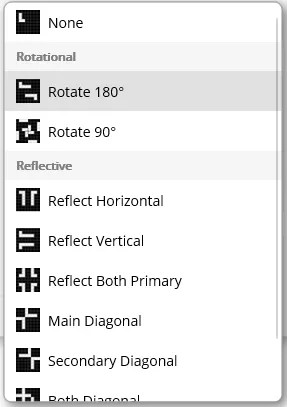
Symmetry
Section titled “Symmetry”The Symmetry field presents a menu of symmetry types. This determines the symmetry of grid’s lights. A rectangular crossword can have up to ten different symmetry types, though some are only valid for square grids (reflections about diagonals or 90° rotation). If the currently configured number of rows and columns, some symmetry options will be disabled. If a square symmetry is selected first, the Rows field will be disabled, with an explanation shown.
Initial state
Section titled “Initial state”The Initial State options specify whether the grid is initialised with all cells blocked or open:
-
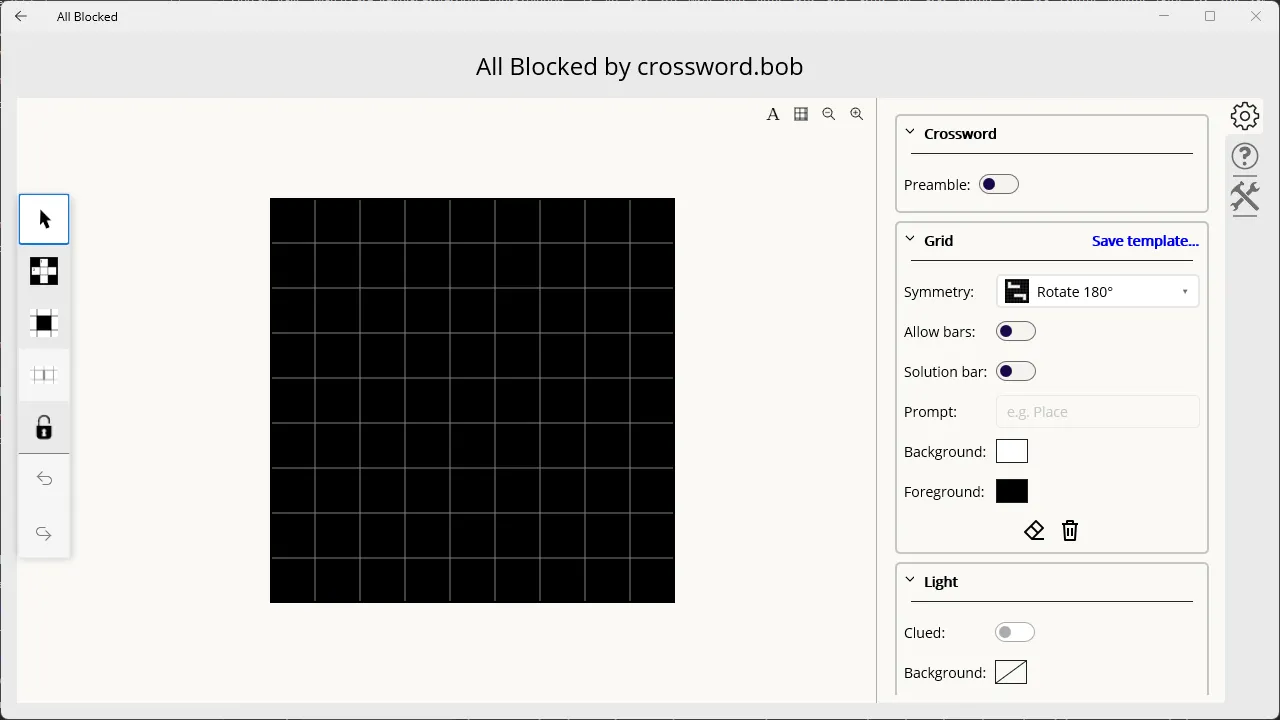
The “All blocked” option is typically used for UK-style crosswords, which feature a balance of checked and unchecked cells. The layout is generally created by using the Light Tool to “paint” lights onto an empty grid:
-
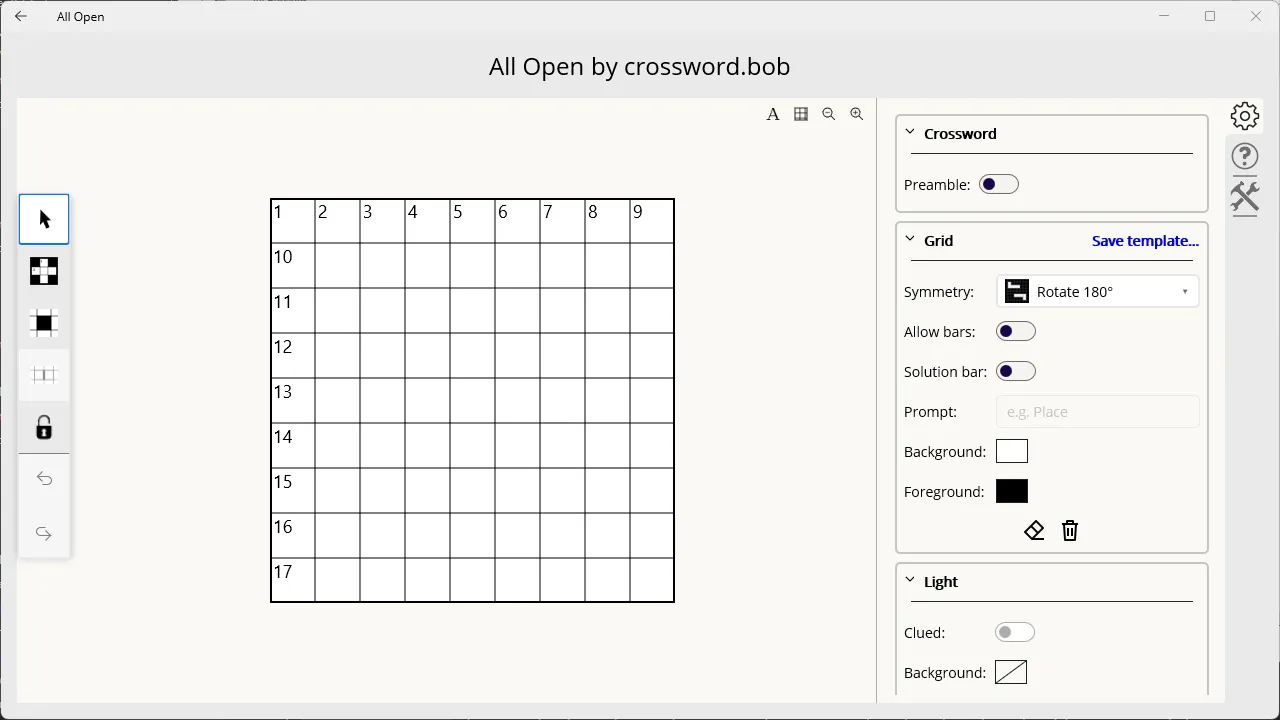
The “All open” initialises the grid with all cells open, with lights implicitly defined on all rows and columns. This is typically used for US-style crosswords and barred crosswords, which generally have many more checked cells than unchecked. The layout is then defined by using the Block Tool or Bar Tool to selectively add blocks and/or bars.
Allow Bars
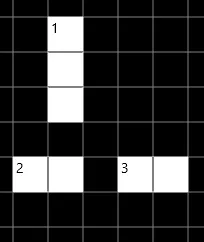
Section titled “Allow Bars”The Allow Bars option has two effects. It directly enables/disables the Bar Tool. But it also affects the Light Tool. When it is switched on, using the Light Tool to create a light containing cells adjacent to one or more existing open cells separates those cells with a bar. Say we start with this layout:
Adding a new light with Allow Bars set on gives this:
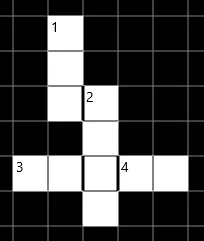
The new light is isolated from the adjacent existing lights. Adding a light does not implicitly create any other light (aside from symmetry rules) or alter any exsting ones.
On the other hand, if Allow Bars is set off, the same action would produce this:
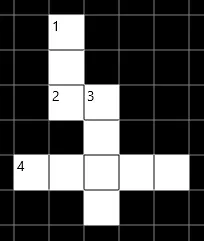
In addition to the light just added (3 Down), A new light (2 Across) has been implicitly created, and two separte lights have merged to produce a single light (4 Across).
Circular grids
Section titled “Circular grids”The other grid type currently supported is Circular grids.
Grid size/shape
Section titled “Grid size/shape”The grid size for circular grids requires three values: Inner radius, Outer radius and Radials. The Inner radius specifies how large the empty circular space at the centre of the grid is, in terms of cell widths. The outer radius specifies the size of the total grid. The number of rings in the final grid is given by Outer radius minus Inner radius.
The Radials field defines how many cells there are in a full ring, prior to use of the Merge Tool.
Circular symmetry
Section titled “Circular symmetry”Circular grids are controlled by two symmetry options, both rotational. Cell symmetry controls how the Merge Tool operates. If the cell symmetry is n-fold, then using the Merge Tool to add or remove a grid line in some ring will perform the same operation on n grid lines symmetrically around the ring.
Bar symmetry works similarly: with n-fold bar symmetry, adding or removing a bar will add n bars symmetrically around the ring.
Both symmetry options are restricted to whole divisors of the number of radials configured.
Creating templates
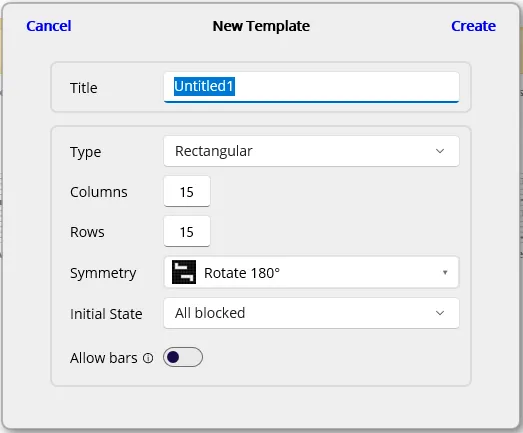
Section titled “Creating templates”The New Template dialogue is similar to the New Crossword dialogue, except that it doesn’t offer an Author field or the ability to create from another template. All options work as in New Crossword.