Library Browser components
The Library Browser comprises three sections:
- A toolbar that contains navigation controls and actions to be performed on crosswords, templates and folders,
- A navigation side panel to navigate quickly through your library,
- A main panel where crosswords, templates and folders can be interacted with.
Toolbar
Section titled “Toolbar”The toolbar is split in three parts; navigation, the current folder path, and general tools.
Navigation
Section titled “Navigation”Navigation works just like Windows’ file explorer:

Here, the Forward and Back arrows navigate through your folder history, while the Up arrow takes you to the current folder’s parent folder.
The X button deletes the currently selected crossword(s), template(s) and folder(s).
The View menu allows you to control how the main panel is displayed - as tiles or a list - and also choose how folder items are ordered.
Folder path
Section titled “Folder path”Again, this is much like Windows’ folder path; it shows your current position in the folder structure:

You can click any of the folders in the current path to navigate directly to them.
General tools
Section titled “General tools”The right hand side of the toolbar contains some general tools that you can use to perform actions on crosswords:

- The first tool the New button. Clicking it gives you the option to create a new folder, crossword or template. See Creating new items.
- The second is the Import button. It opens a Windows File browser which you can use to import a crossword or template from your file system, as described in Importing files.
- The third tool is the Export button. It opens a dialogue enabling you to export crosswords and templates in your library in a number of formats. This includes crossword file formats, formatted documents, grid image files and clue lists. See Exporting to files.
- The fourth is the Print button, which allows you to send crosswords to a printer. See Printing crosswords and templates.
- The last opens the Crossword Wrangler application settings, which contains preferences and additional application information/ See Application Settings.
Navigation side-panel
Section titled “Navigation side-panel”The navigation side-panel allows you to quickly navigate your folder structure.
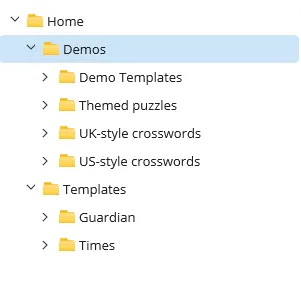
Again, this is very similar to the Windows’ File Explorer navigation panel. Folders can be expanded and collapsed; clicking a folder opens it in the main library panel.
Main panel
Section titled “Main panel”The main Library Browser panel can be displayed as tiles or as a list:
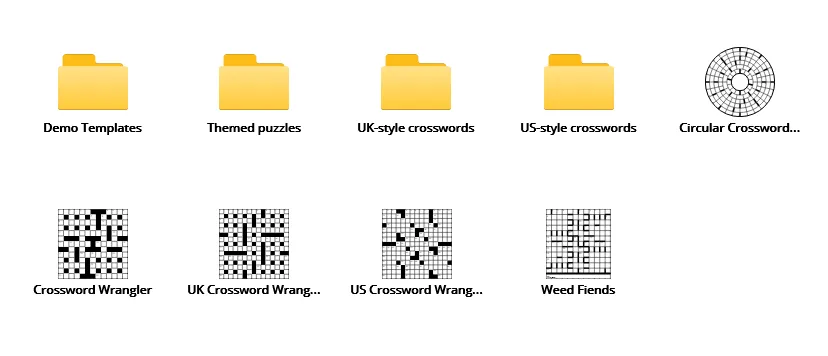
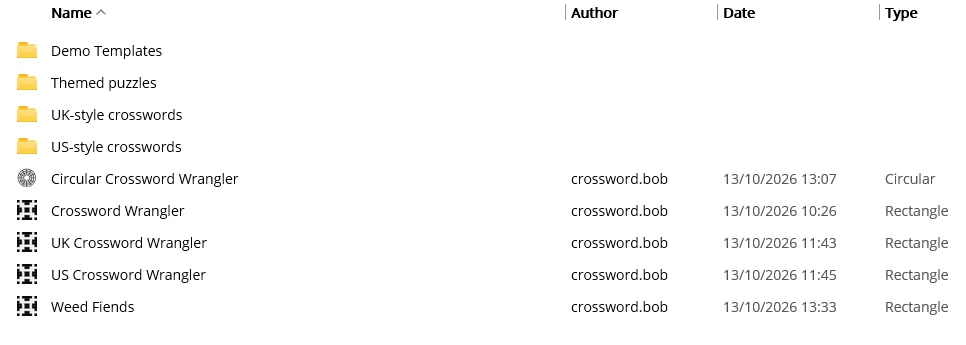
This panel allows you to navigate through your library and to interact with items (crosswords, templates and folders). Clicking on an item selects it; you can select multiple items, using Shift-click to select a range of items, Ctrl-click to add/remove items from the current selection, or dragging a rectangle across multiple items.
Items can be dragged; dragging a selection onto a folder in the main panel or in the navigation side-panel will move the selection to that folder. Pressing Shift while dragging will copy instead of move.
In list-view, the items can be reordered by clicking the column headers.
Right-clicking an item brings up a context menu. When the item is not selected, the context menu applies to that item. If multiple items are currently selected, right clicking any one of them produces a context menu based on the whole selection.
Context menu
Section titled “Context menu”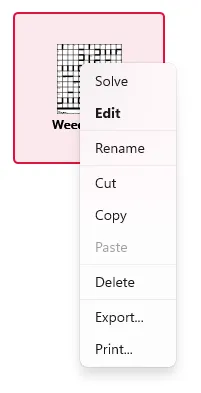
The items in the context menu depend on the item(s) selected when it is raised. Crosswords may be opened in the Edit Page or Solve Page. Templates may only be opened for editing
Cut/Copy/Paste options work within the app as you’d expect and offer another way to move or copy items. Keyboard shortcuts Ctrl+X, Ctrl+C and Ctrl-V can be used.
Individual crosswords, templates and folders may be renamed using the context menu as an alternative to the Renaming methods below.
All other item context menu options replicate functionality described in the Toolbar section.
Right-clicking the panel itself offers New, View, Import and Paste options, again replicating functionality in the Toolbar section.
Renaming items
Section titled “Renaming items”Clicking the name of a crossword, template or folder allows inline renaming. With a single item selected, F2 achieves the same thing.
Opening items
Section titled “Opening items”Double-clicking an item or selecting it and pressing Return opens it. Templates always open in the Edit Page. Crosswords will either open in the Edit Page or the Solve Page, depending on an option in Application Settings.