Your first crossword
For your first crossword, we’ll create a UK-style grid, fill it with answers, then write the clues. Finally, we export it to PDF.
Set up the crossword
Section titled “Set up the crossword”-
Start Crossword Wrangler.
-
From the Library Browser page, click the plus button and select Crossword.
-
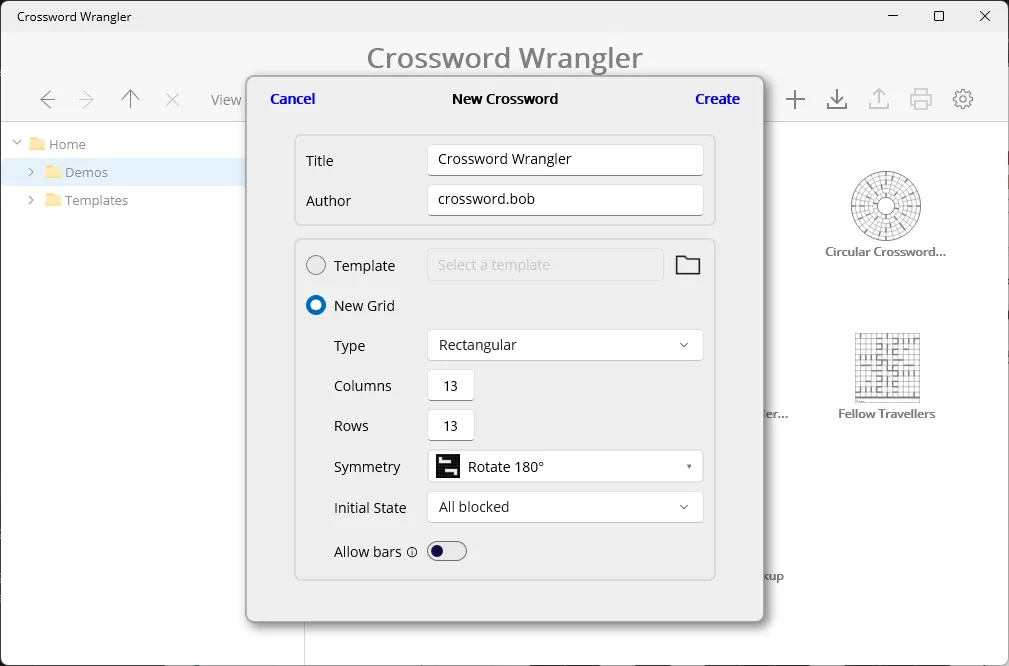
Give your crossword a title, and add your name to the Author field.
-
Set the number of rows and columns to 13, and ensure 180° symmetry is selected.
-
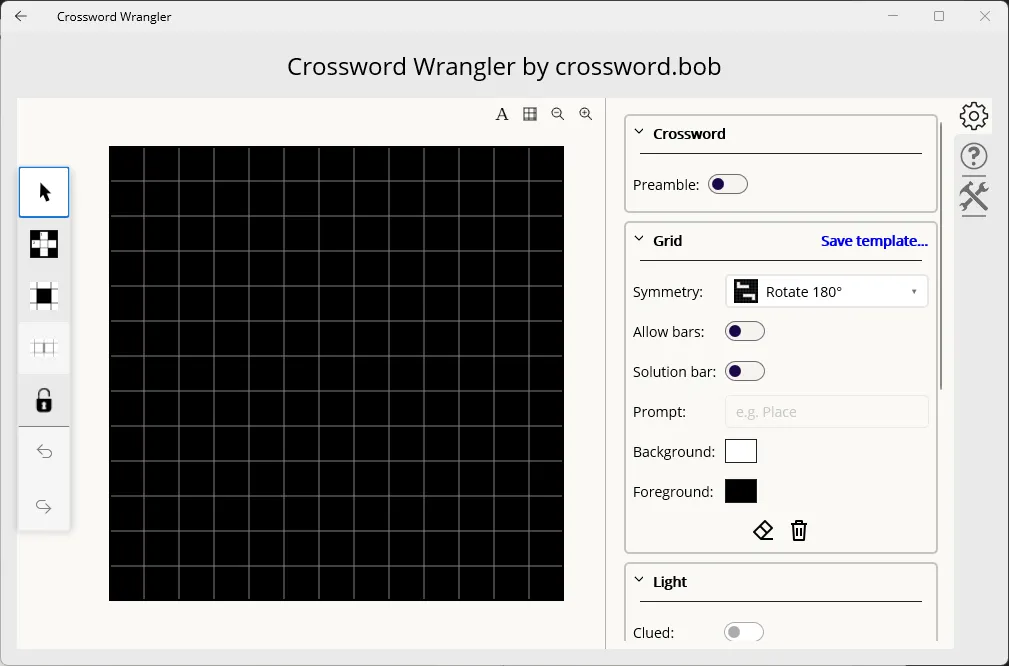
Click Create. You will be taken to the Edit page, with an empty grid waiting for your layout.
Create the grid layout
Section titled “Create the grid layout”The Light tool allows you to click and drag to add lights (the spaces where solver write their answers).
-
On the left-hand toolbar, select the Light tool or press Ctrl-L.
-
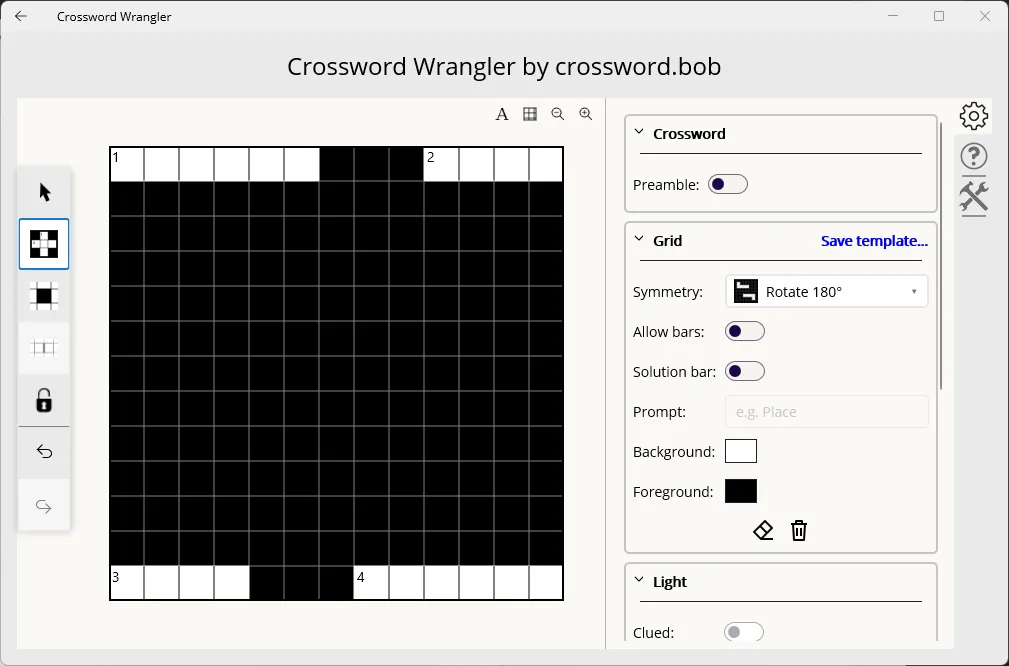
With the Light tool selected, click on the top-left cell and drag to the right to create a six-cell light.
-
Leave a gap of three cells, then click and drag a four-cell light to end at the top-right cell:
-
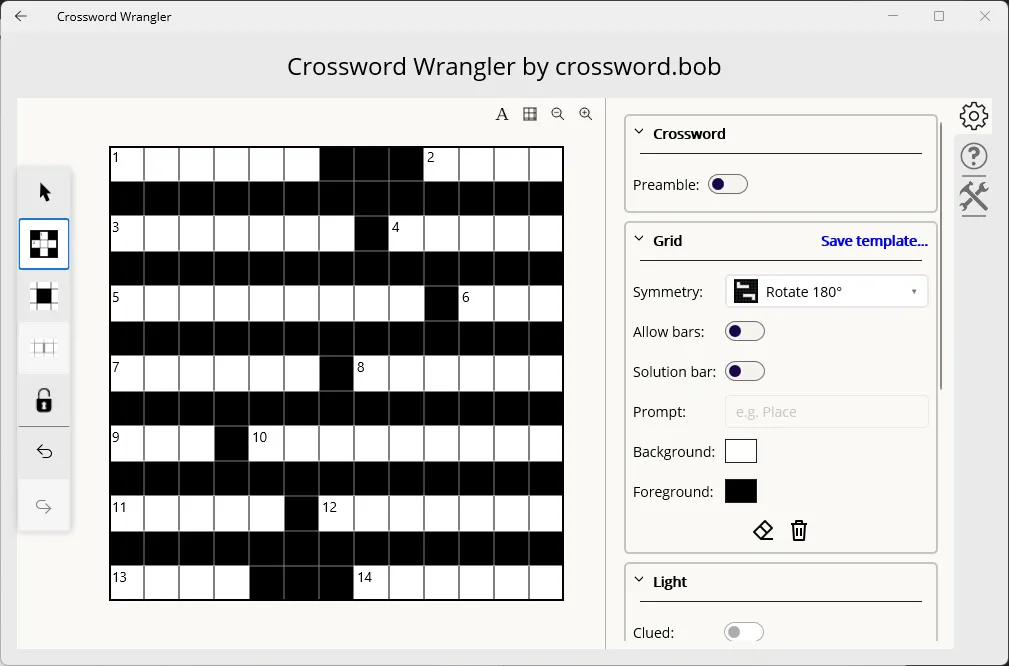
Repeat this on the third row, dragging seven-cell and five-cell lights with a gap of one cell between.
-
Continue on the fifth row, dragging nine-cell and three-cell lights with a gap of one cell between.
-
Drag one more six-cell across light on the seventh row. That’s the across lights done!
-
Repeat this process for the down lights, starting from the top left and dragging down for seven cells, leaving a single cell gap and another five-cell light beneath it.
-
On the third column, drag a five-cell light followed by a seven-cell light, leaving one cell between them.
-
On the fifth column drag a single long light from the top, stopping one cell before the bottom of the grid.
-
Finally, on the seventh column, leaving one cell at the top, drag one more four-cell light. That’s the grid done; you should see something like this:
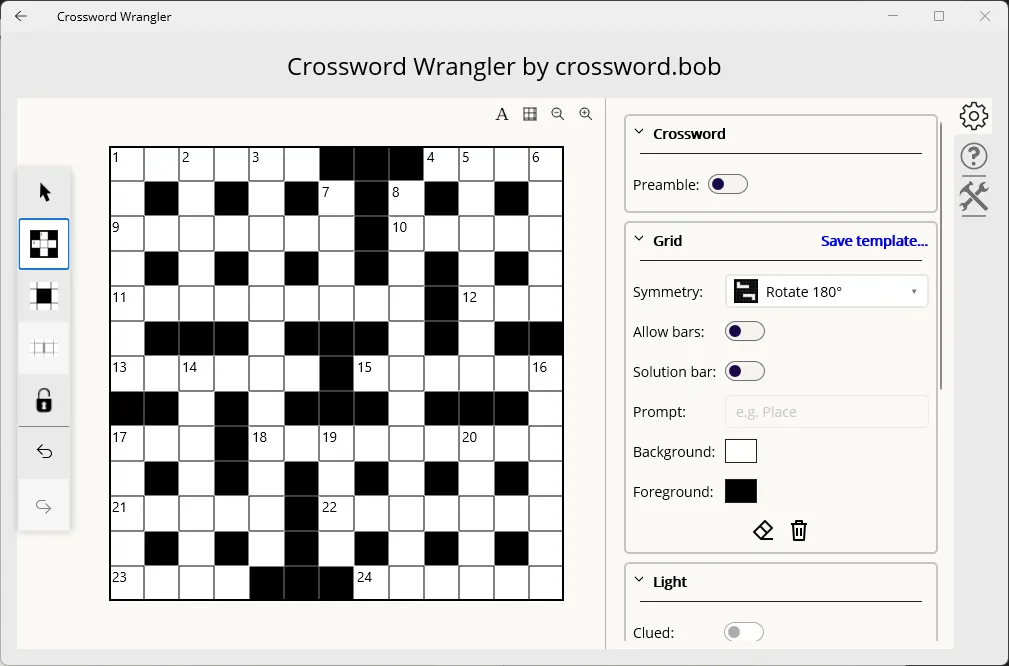
Now that the grid layout is done, it’s good practice to lock the grid to avoid accidental layout changes from interfering with gridd filling and clue writing, so click the Lock Grid tool on the left-hand toolbar or press Ctrl-G.
Fill the grid
Section titled “Fill the grid”Now we need to fill the grid with words. To speed this up, we’ll use the Auto-fill feature, which can be found on the Tools tab on the right-hand side.
-
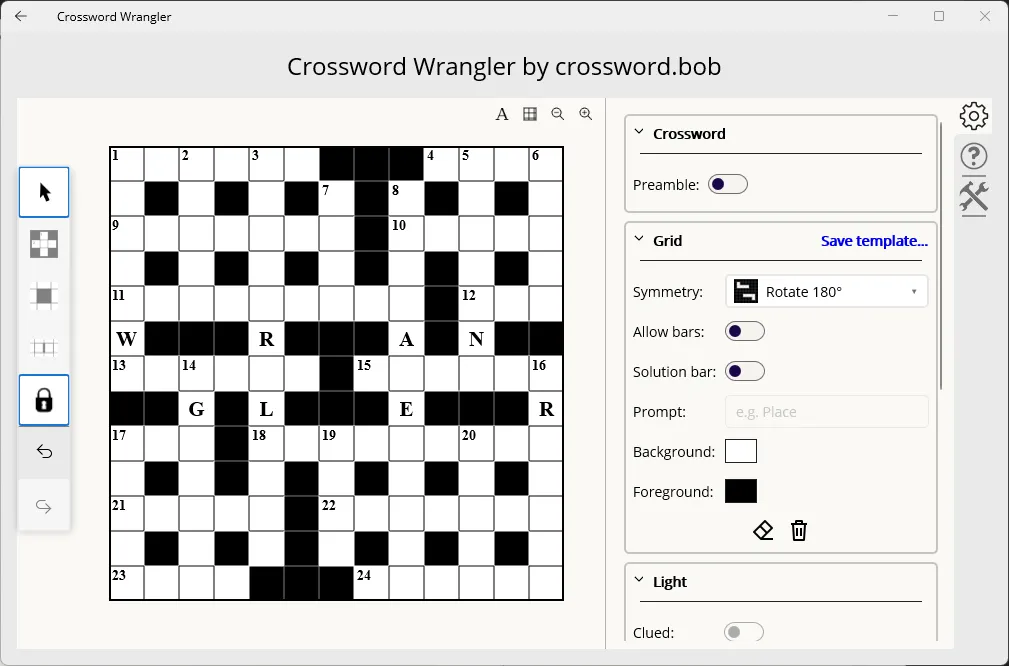
First, let’s give the feature some fixed cells to work around. In row six, there are four open cells, with their symmetric images in row eight. Select each of these cells in order, and enter “WRANGLER”:
-
Now, click on the Tools tab on the right-hand tab selector, scroll down and expand the Auto-fill panel.
-
Leave the default options, and click the Go button.
-
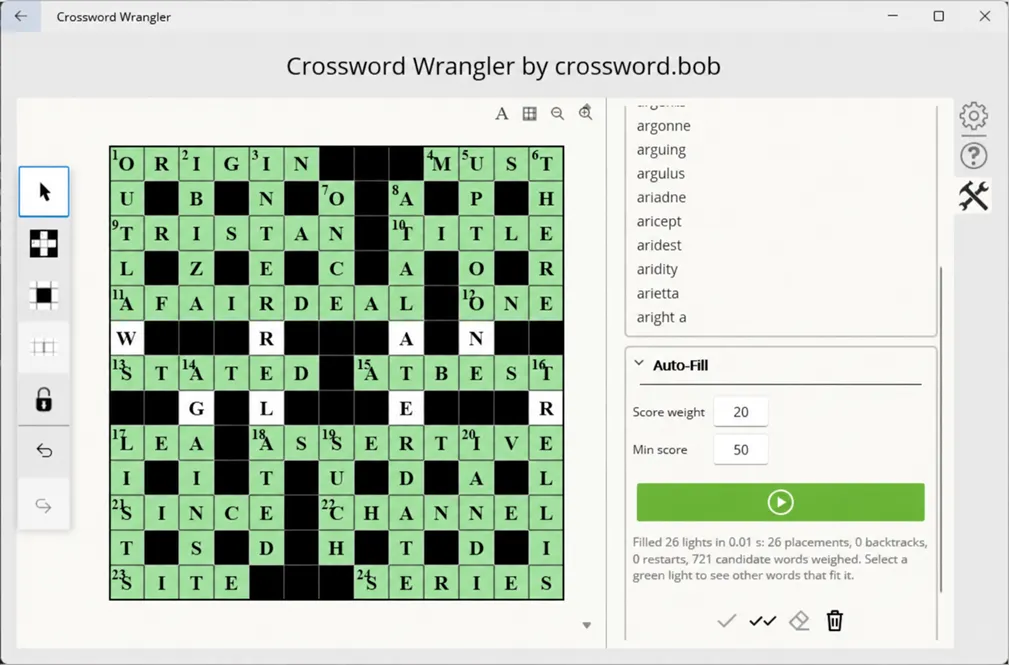
The grid is filled! Your results are randomised, so you probably won’t see the same words as below, but take a moment to look through them and see if you like the results:
-
If there are any words you don’t like in the results, click them, and the word search panel will automatically show alternatives for that light. If you don’t like anything you see, you can use the auto-fill eraser to clear that light, then click one of its intersecting light to find alternatives with better intersections with the problem light.
-
Once you’re happy, click Accept All, and your grid is complete!
Write the clues
Section titled “Write the clues”All that remains is to write the clues.
-
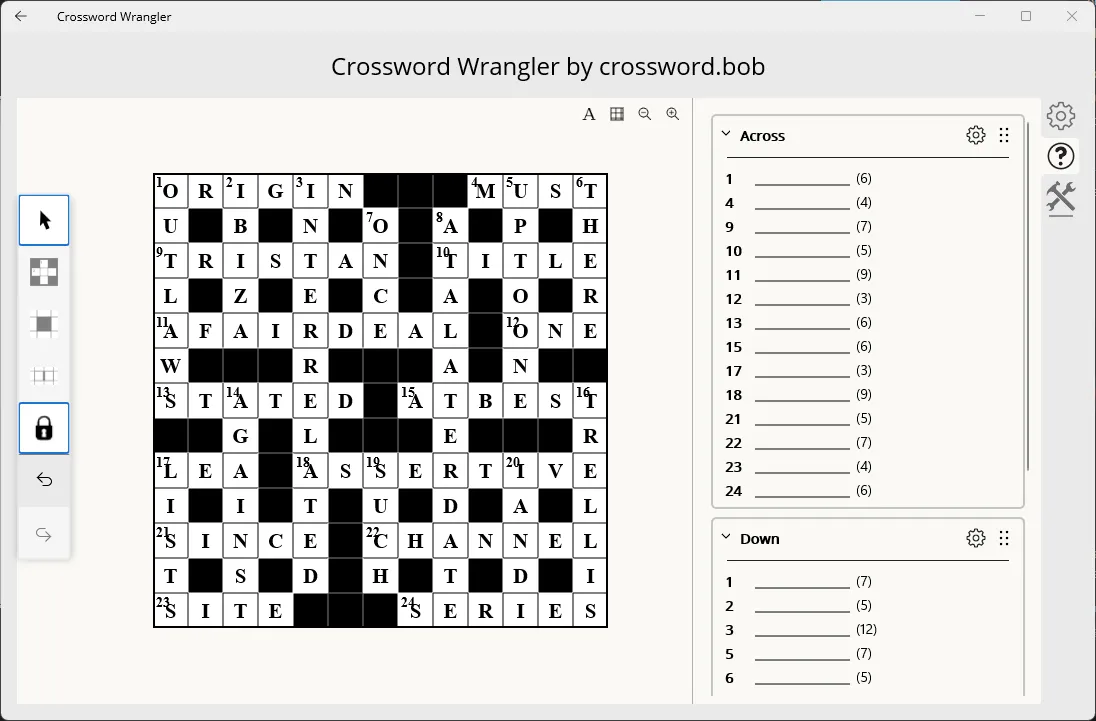
Click the Clues tab from the right-hand tab selector. You should see placeholders for the lights in your grid:
-
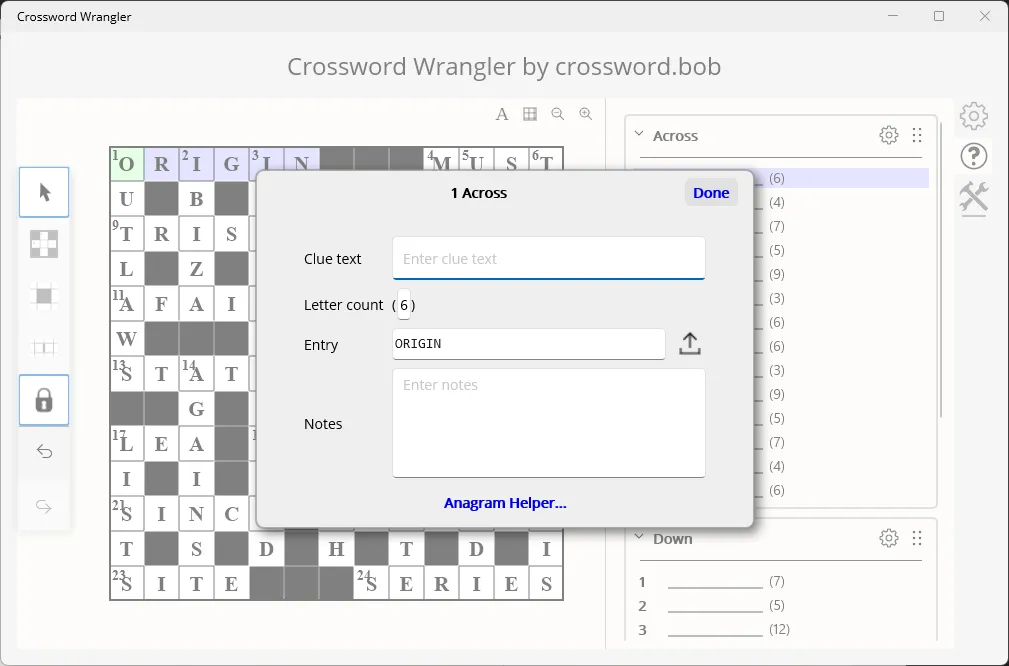
Click the first placeholder to see the Clue Definition box:
-
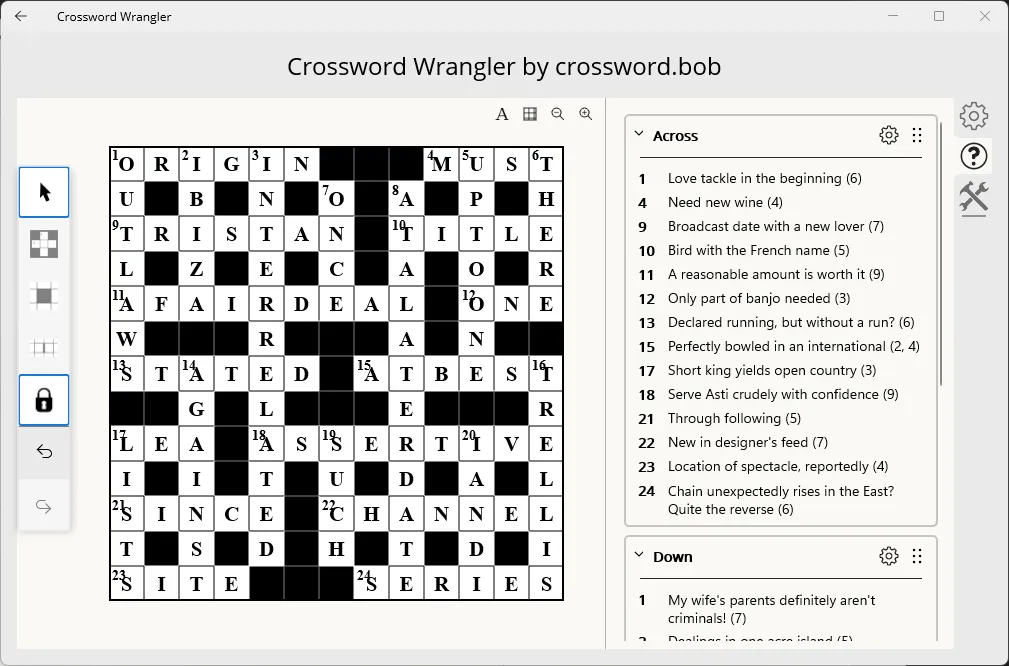
This bit’s on you! Compose a suitable clue for the given answer, and enter it into the clue text. If the answer has multiple words or hyphens, update the letter-count field as appropriate, then click Done.
-
Repeat for the rest of your answers.
Export your crossword
Section titled “Export your crossword”Once everything’s done, click the Back button at the top left of the Edit page to go back to the Library Browser. Your crossword will already be saved. Now let’s see the final result.
-
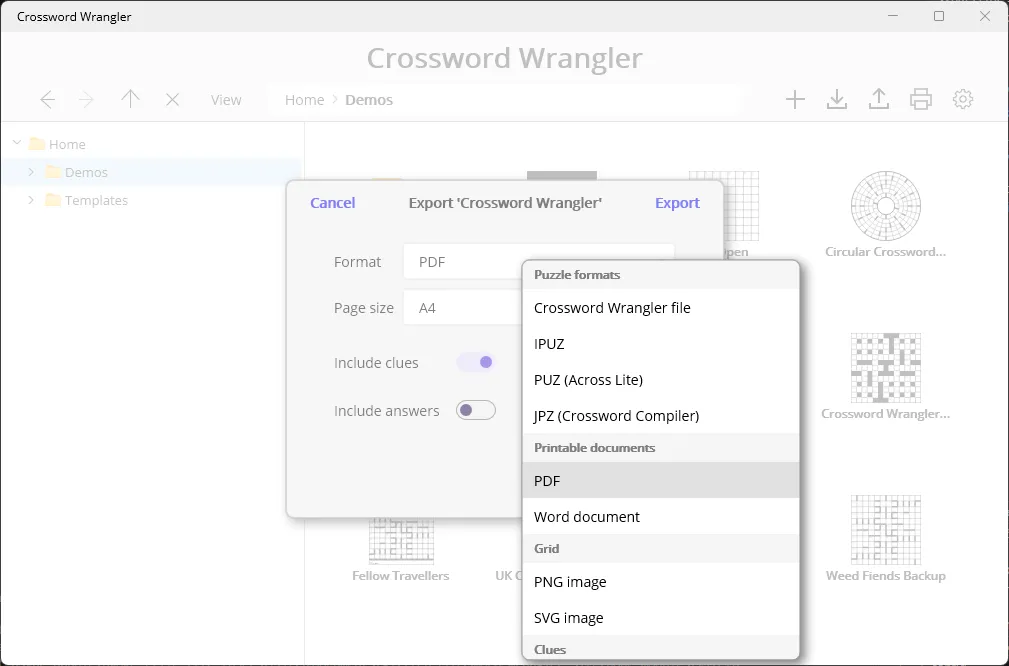
Select your new crossword in the library browser and click the Export button in the toolbar:

-
In the dialogue, click the Format drop-down and select PDF
-
Choose your preferred page size, leaving the checkboxes with their default values, then click Export.
-
Choose a location and file name for your PDF and click Save.
-
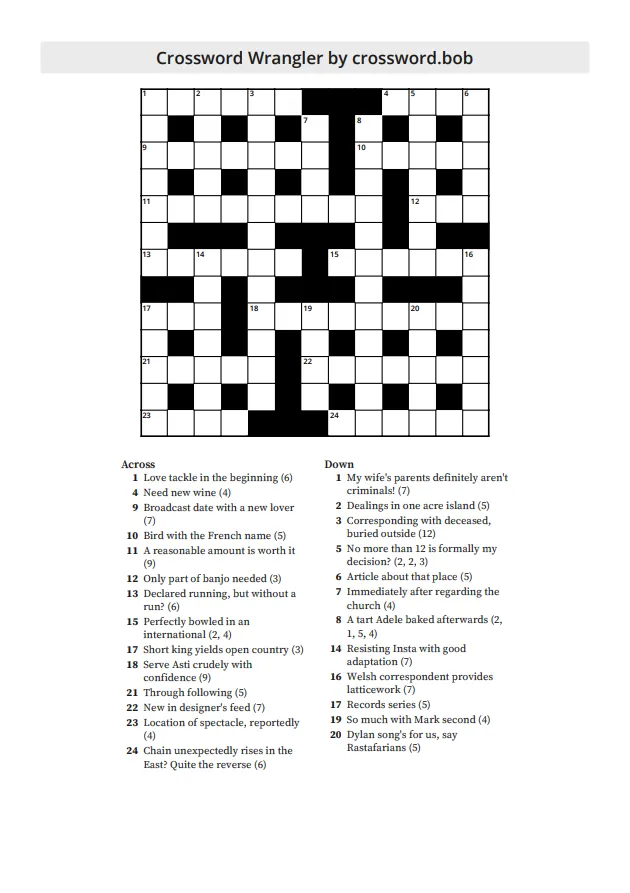
Take a look at the result:
Now send it to your friends and see how they get on! Or try mine (PDF).